
Integrations: vragen.ai on your site
An integration is one way vragen.ai appears on your site: a dedicated question page, an overlay on every page, or suggestions in your existing search bar. An environment can have several integrations side by side, each with its own shape, agent and appearance. That way your customer service page gets a different setup than your homepage, from the same knowledge base.
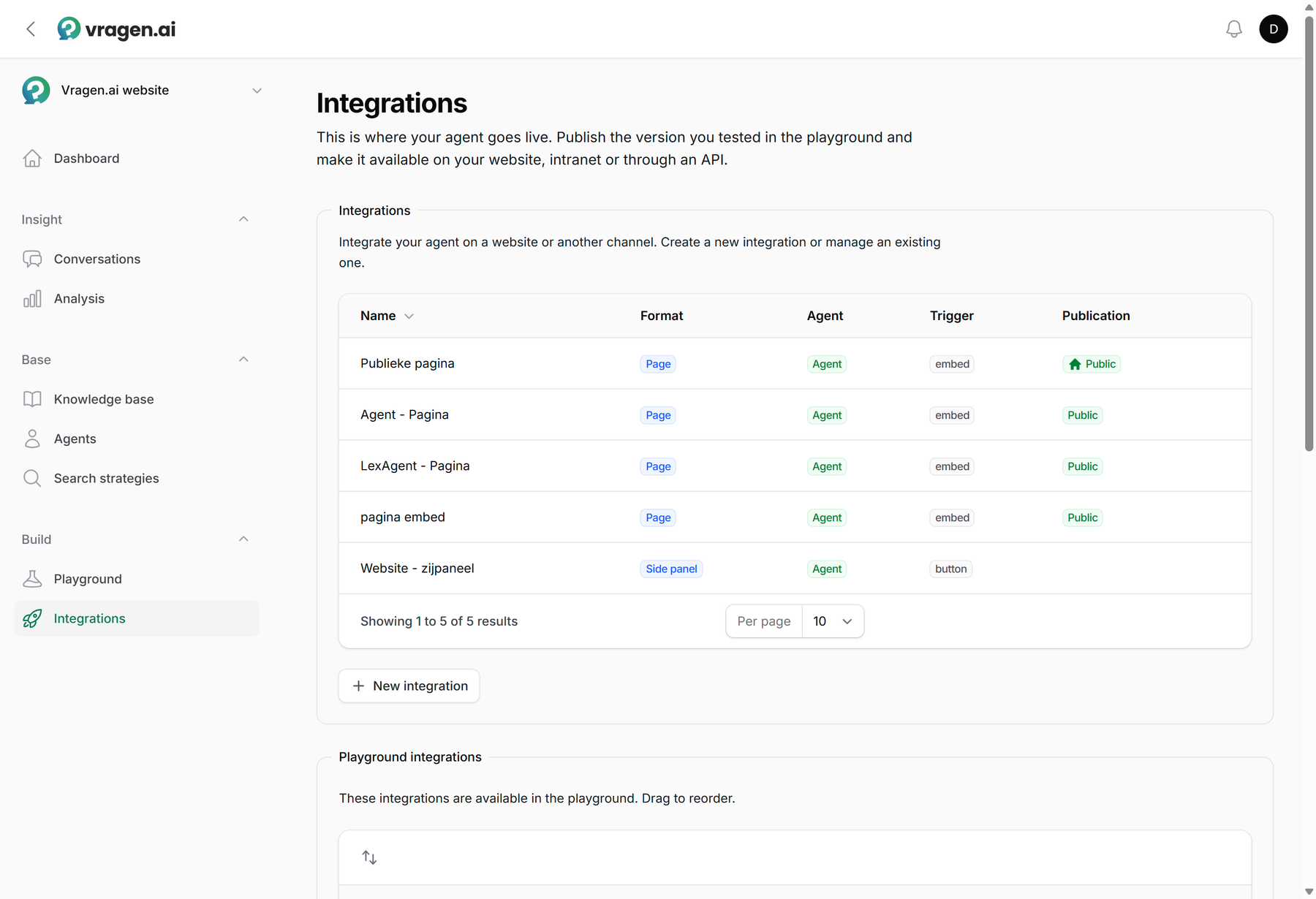
The shapes
Every integration has a shape; it decides how visitors encounter the widget:
- Page: a page of its own on your site, for example
/questions. The widget is the main event there. - Overlay: opens on top of the page, from a button. The most chosen shape.
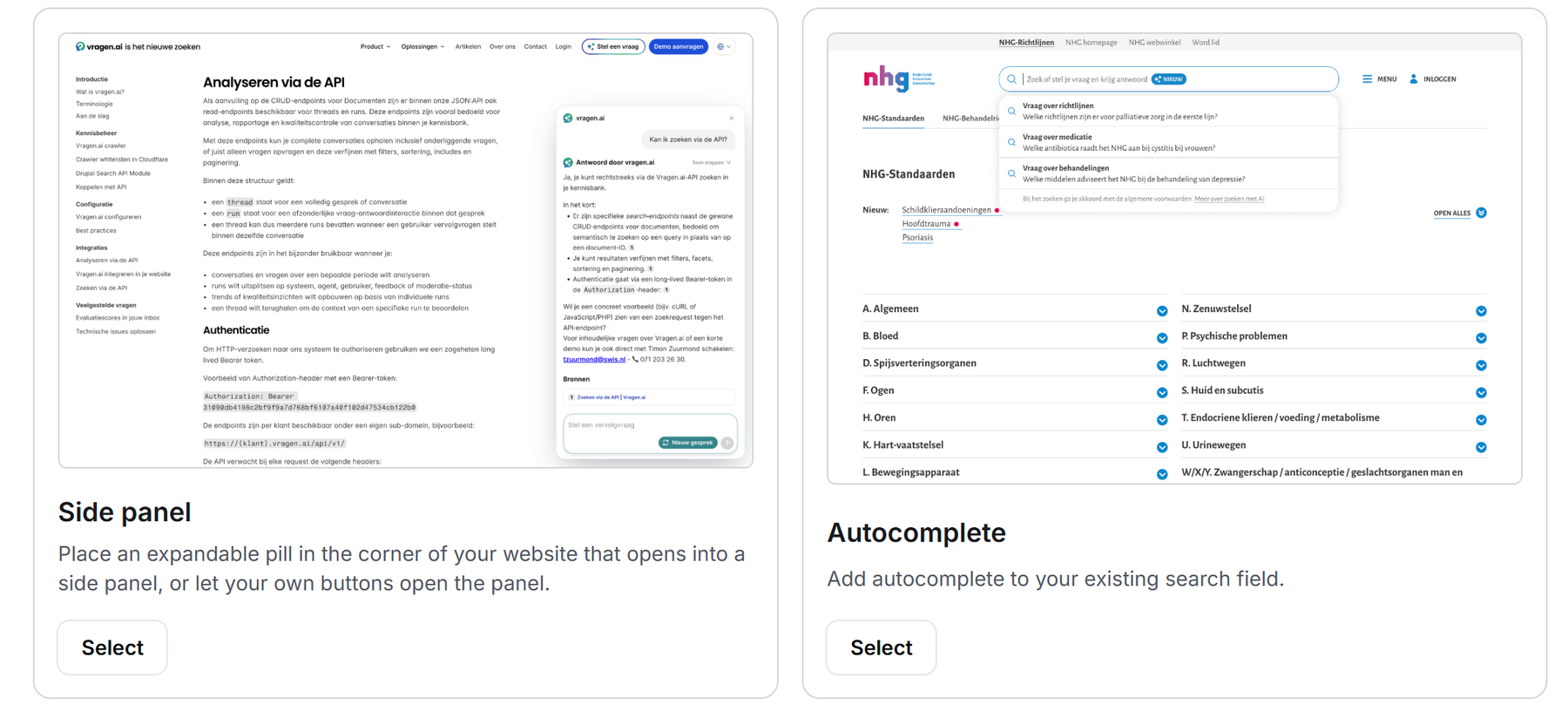
- Side panel: slides in from the side and can stay open next to the content, with a keyboard shortcut if you like.
- Search add-on: hooks into the search engine you already have and shows a generated answer next to the results.
- Autocomplete: suggests pages while the visitor types their question. Runs entirely on a search strategy, without a language model.
In the wizard you pick the shape from cards with a live example, so you see what you are choosing before moving on. The Search Add-on is not part of the wizard; you pick that shape after creating the integration, on the Configure tab.
How the widget opens is up to you per integration: with the built-in button, through a link of your own, or attached to a button that is already on your site. Such a button of your own can also have the assistant ask a question right away, and a developer can open an overlay or side panel from JavaScript. How that works is covered in Opening the widget from your own page.
Steering and appearance
You connect every integration to an agent, which gives the answers in the style you configured there. Under Customize you handle the appearance: the widget display and the language of the interface (Dutch, English, German, French, Turkish or Arabic). From the Professional plan onward you can do more there: hide the vragen.ai branding inside the widget and put your own brand color in its place, rewrite the individual interface texts per language, and add your own CSS, HTML or JavaScript around the widget.
That is also where the AI notice lives: the line telling visitors they are talking to AI, as the AI Act asks. You configure it separately for the input field and for the answer, including position and timing. Why that notice belongs there is covered in our article on the transparency obligation.
Going live
Under Install you find the embed code, ready to copy. On WordPress or Drupal there is a plugin and a module; for other systems the script tag or an oEmbed link is enough. The practical sides of placing, styling and securing the widget are covered in The widget on your website.
The same page also holds the API connections: keys that let an external system start conversations, deliver documents or read data. What you can do with them is covered in Working with the API.
Want to see it first? Try it out opens a live preview, Share sends a colleague a link, and Show in the playground puts the integration in the playground so your team can try it before it goes on the site.
Who can do what
Viewing and managing integrations starts at the Editor role; an Annotator does not see this module. More about the roles: Managing users and roles.