
Conversations: your agent's inbox
Everything visitors ask your agent lands in Conversations. Here you read back what was asked, what the answer was and how well that answer scored. Two tabs keep things clean: Integrations shows the real conversations from your website and other channels, Playground the conversations your own team had while testing.
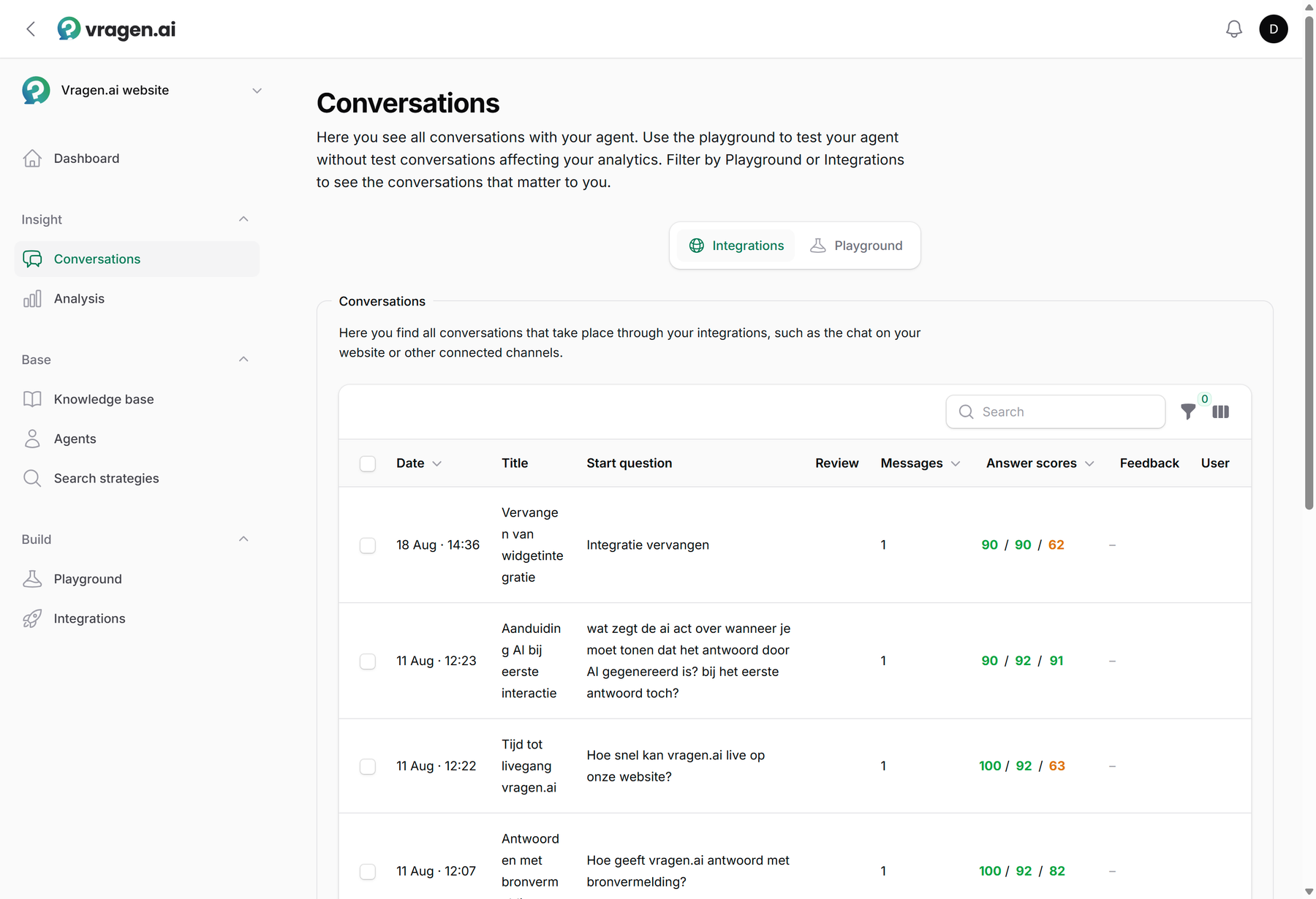
The overview: seeing what needs attention
Every conversation sits in the list with its start question, the number of messages, the three answer scores and the visitor's feedback. The Review column does the groundwork for you: conversations where the answer fell short automatically get a label such as "Missing content" or "Weak answer". That way you start with the conversations where there is something to gain, instead of at the top of the list. Want to know more per conversation? Switch on extra columns: which integration it ran through, which agent answered, which page the question came from, and the feedback details, meaning exactly which points a visitor approved or rejected.
Looking for one specific conversation? The search bar looks at the content as well as the title: type a word that appeared in the question or the answer and you will find the conversation. If nothing matches, the list says so, instead of suggesting you have no conversations yet.
The filters cut the list down further: by period, by integration or agent, by theme or topic, by feedback (positive, negative or none at all), by answer status (interrupted or stopped by the content policy), by who held the conversation, by conversations with feedback or an internal comment, by what still needs review, or by conversations your team flagged. The filters live in the address bar. So you can bookmark a filtered list, or send it to a colleague as a link and they see exactly the same selection. Don't need the title column? Switch it off.
Coming from the analysis or the dashboard? The list opens with the filters already set: the same period, theme or feedback as the number you clicked. You can then remove each filter on its own.
One conversation up close
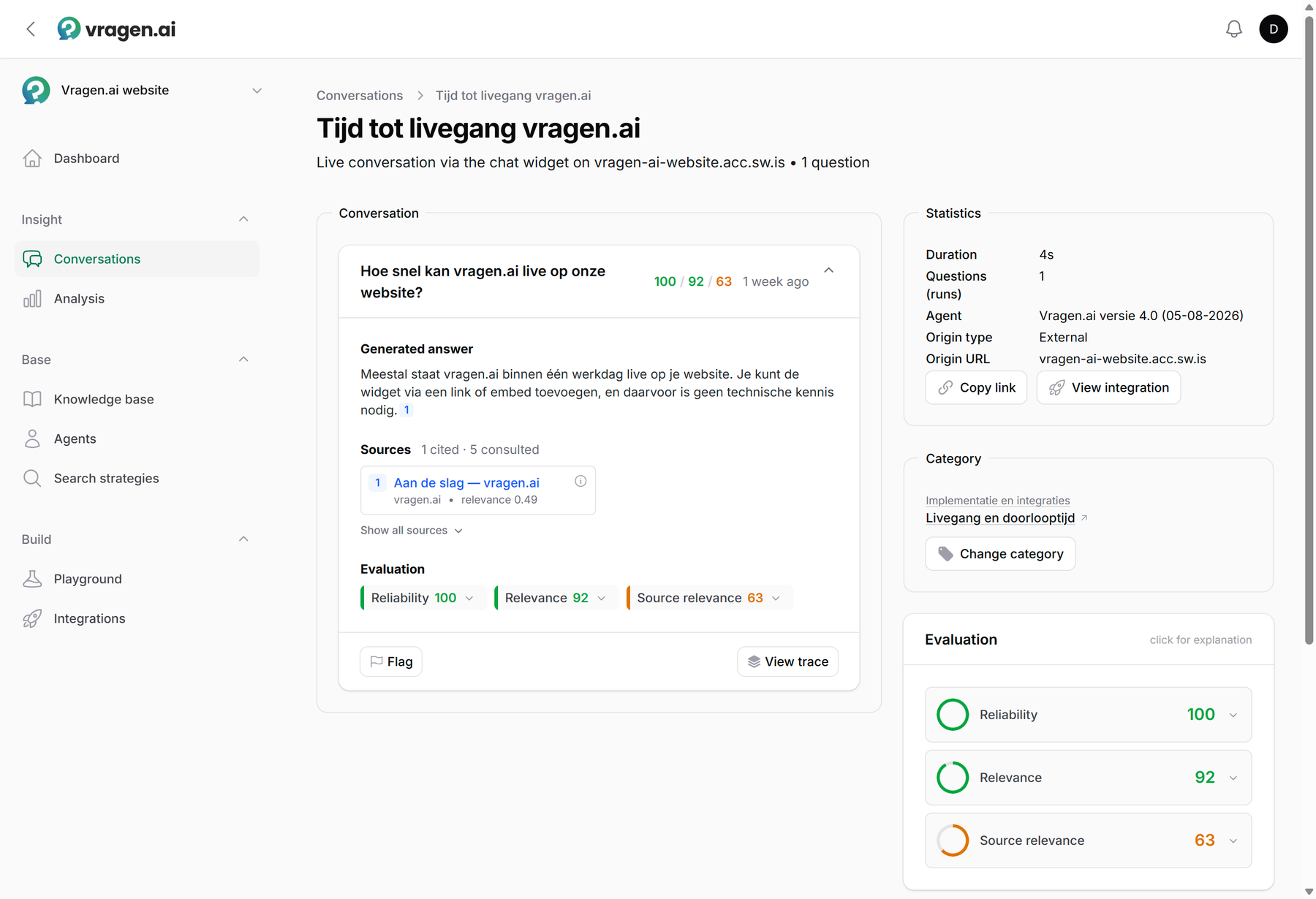
Open a conversation and you see the full story per question: the generated answer, which sources were cited and which were only consulted, and the evaluation scores for faithfulness, relevance and source relevance. The side column holds the practical facts: which agent (or which answer system) answered, through which integration, how fast, and from which page the question came. Agent and integration are clickable, so from a conversation you land right on the settings that shaped the answer. Want to know exactly which steps the agent took? Open the trace.
If an answer did not finish, the conversation says why. A visitor hitting stop halfway through shows as "stopped by the user"; if something broke technically, the conversation says that instead. That saves you digging: the first is normal behavior, the second is worth a look.
Reviewing together
The inbox is built to go through with your team. Notice something? Flag the answer so a colleague can find it back. Below every conversation you can leave internal comments; visitors never see those. You can still edit or delete your own comments later. If an automatic diagnosis is off the mark, you dismiss it with one click. And if a conversation sits under the wrong topic, an Editor changes the category so the analysis stays clean.
How to run such a review round, from giving feedback to reading the scores, is covered in Testing and evaluating.
Visitor feedback
Visitors can rate an answer in the widget with a thumbs up or down, and add a comment. That feedback lands with the conversation, so you not only see that someone was unhappy, but also about what. Set the Feedback filter to Negative and you have those conversations together as a work list.
Search queries from the search API
Do you also use vragen.ai as a search engine, through the Drupal module, the WordPress plugin or directly through the search API? Then those searches give you the same insight a conversation does: you see what visitors are looking for, even when no answer is generated. Switch on Store search queries in your environment's settings, on the Advanced tab (see the dashboard). Search queries then appears under Insight, listing every query with its date and search term; switch on the Origin column to see which page the search came from.
Open a query and you see the search context, meaning the filters, facets, sorting and thresholds the searching site passed along, and the results vragen.ai returned. Empty searches, such as a page loading an overview without a search term, are not stored. Stored search queries disappear automatically after one month and sit apart from your conversations.
Who can do what
Everyone on your team with the Annotator role or higher can read, review and flag the inbox. Exporting or deleting conversations and changing categories starts at the Editor role. That way a large group can read along without anything happening to the data. More about the roles in Managing users and roles.
How long conversations are kept is up to you, through the retention period of your environment; see Hosting and data storage. Want to analyze the inbox outside vragen.ai? Export it as a spreadsheet: Exporting and analyzing the inbox.